
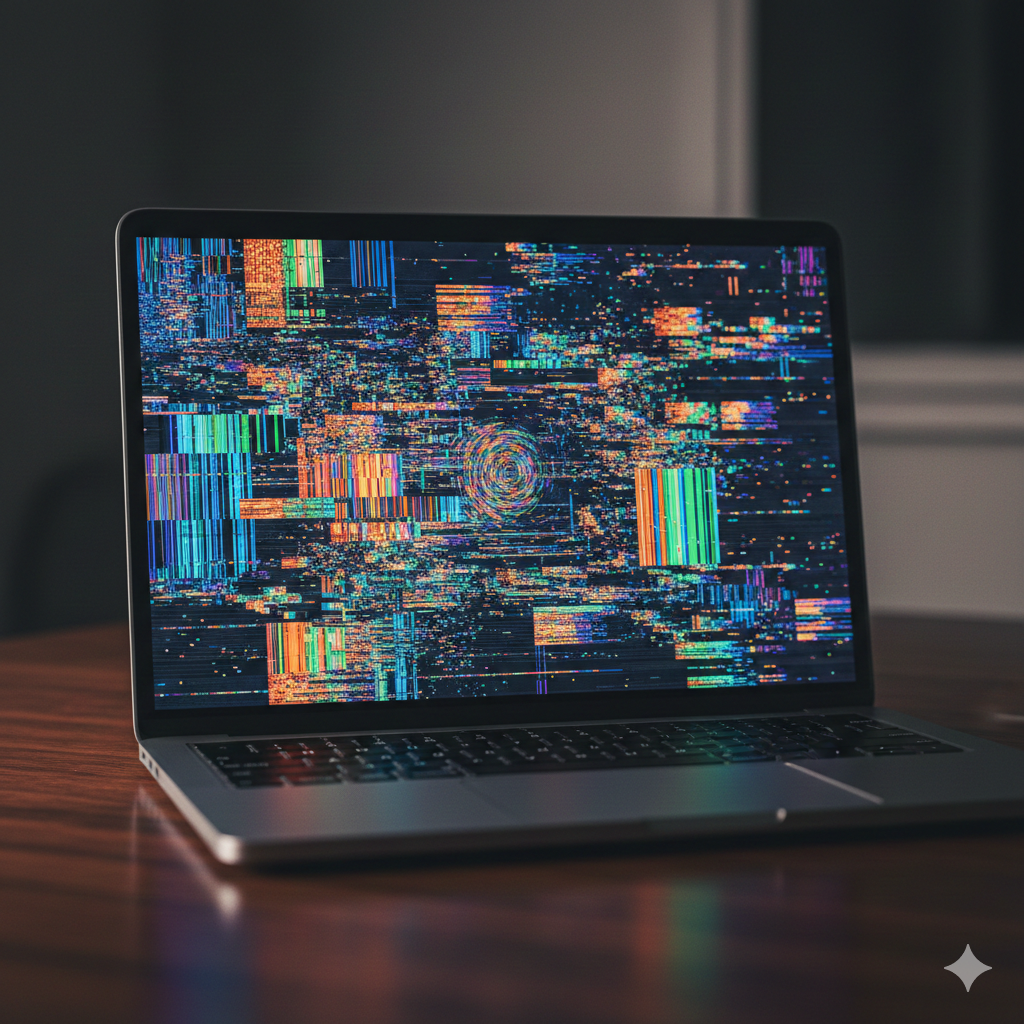
The dreaded "spinning beachball" used to be the worst thing a Mac user faced—a temporary hang, a moment to grab coffee. But for many modern power users, the spinning icon has been replaced by something far more sinister: flickering lines, checkerboard patterns, and static bursts. When GPU artifacting on the MacBook Pro begins, it isn’t just a software glitch; it’s often the final scream of a system pushed past its architectural limits. If you’ve noticed your Pro-Motion display stuttering or your screen "tearing" during heavy renders, you aren't just imagining it. You are witnessing a complex intersection of thermal stress and memory bottlenecking.
Section 1: Understanding the GPU Artifacting Crisis
GPU artifacting refers to visual distortions that appear on your screen independent of the software you are running. Unlike a simple app crash, these artifacts—often appearing as jagged lines or flashing colors—indicate that the Graphics Processing Unit is struggling to process or output data correctly.
In the latest Apple Silicon era, the transition to Unified Memory Architecture (UMA) changed the game. While UMA allows the CPU and GPU to share a single pool of high-speed memory, it creates a unique vulnerability. When you are pushing high-refresh rates via Pro-Motion technology, the demand on that shared memory spikes. If the system hits "Memory Pressure" (the yellow or red zones in your Activity Monitor), the GPU can lose its "priority" for data cycles, leading to the early stages of GPU artifacting on the MacBook Pro.
Section 2: The Lethal Combo—Pro-Motion and Memory Pressure
Why is this happening more frequently now? The answer lies in how the MacBook Pro handles high-performance tasks.
The Pro-Motion Strain: Pro-Motion allows for a 120Hz refresh rate. To maintain this, the GPU must draw the screen 120 times per second. This requires constant, rapid access to memory.
Unified Memory Bottlenecks: On base models with 8GB or 16GB of RAM, heavy workflows in Final Cut Pro or Blender force the system to use "Swap Memory" on the SSD. SSDs, while fast, are significantly slower than RAM. This delay causes the GPU to "misfire," resulting in visual artifacts.
Heat and Sustained Load: Unlike the fanless MacBook Air M2, the Pro has active cooling. However, sustained high memory pressure generates heat not just on the chip, but across the logic board, which can eventually lead to permanent hardware degradation.
We have observed in various repair scenarios that users who frequently ignore "out of memory" warnings are the ones who eventually see these artifacts transition from "temporary glitches" to "permanent hardware failure."
Section 3: How to Protect Your Hardware
If you are starting to see these visual hiccups, you need to act before the damage becomes irreversible. Here is the professional roadmap for stabilizing your system:
Monitor Your Pressure: Keep Activity Monitor open. If your "Memory Pressure" graph is consistently red, you are actively wearing down your hardware. Close background tabs and intensive apps.
Toggle Pro-Motion: If you are doing heavy video rendering and notice flickering, go to System Settings > Displays and temporarily lock your refresh rate to 60Hz. This reduces the GPU's workload significantly.
Clean Your Internal Fans: Dust buildup prevents heat dissipation. If your fans are spinning but the chassis feels like a furnace, it’s time for onsite support and maintenance to ensure your cooling system is actually doing its job.
Hardware Assessment: If the artifacts persist even after a restart or on the login screen, it is likely a physical failure of the GPU or the display cable (flexgate). In these cases, we recommend booking an appointment for a professional diagnostic.
Section 4: Conclusion and Final Thoughts
The MacBook Pro remains the gold standard for creative professionals, but it is not invincible. The very features that make it great—high refresh rates and shared memory—can become its downfall if not managed correctly. GPU artifacting on the MacBook Pro is a signal that your workflow is outgrowing your hardware’s current state.
By keeping an eye on your memory usage and ensuring your thermal management is peaked, you can extend the life of your machine by years. If the "beachball" has turned into "artifacts," don't wait for the screen to go black. Be proactive, reduce the load, and seek expert help if the ghost in the machine refuses to leave.
FAQs
Can a software update fix GPU artifacting?
Only if the issue is driver-related. If you see artifacts during the "boot-up" Apple logo, it is almost certainly a hardware issue that software cannot fix.
Is it safe to buy a used MacBook Pro with minor flickering?
No. Flickering is usually a progressive issue. What starts as a small line today often becomes a dead screen within months. Always check our top deals for certified, inspected units instead.
Does this issue affect the iPad Pro too?
While the iPad Pro 12.9 uses similar M-series chips and Pro-Motion, the thermal throttling is much more aggressive, which generally protects the GPU from "burning out" in the same way.
Disclaimer: This guide is for informational purposes. GPU issues can sometimes involve high-voltage components or sensitive logic board circuitry. If you are unsure about the health of your device, always consult a qualified technician to avoid further damage or loss of data.