
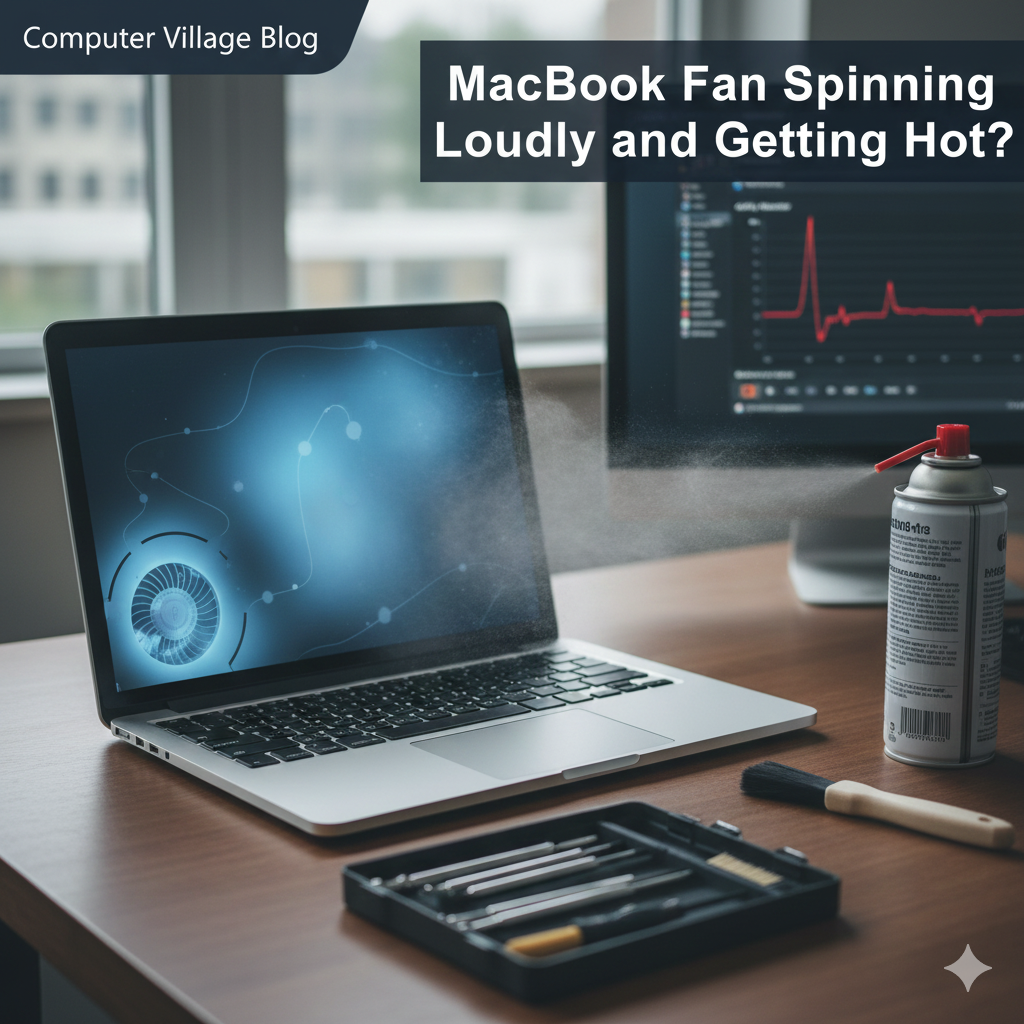
We’ve all been there. You’re in the middle of a project, and suddenly your MacBook sounds like it’s preparing for takeoff. The fans are screaming, the underside is hot enough to fry an egg, and your cursor starts lagging. It’s frustrating, especially when you’ve invested in premium hardware like the MacBook Air M2.
As a team that lives and breathes Apple hardware at Computer Village, we’ve seen thousands of Macs come through our doors with these exact symptoms. While a spinning fan is technically "doing its job" by cooling the internal components, a constant, loud drone usually points to an underlying issue—either software-related or physical maintenance.
In this guide, we’ll walk through why this happens and how to fix it. Because your Mac is a significant investment (much like a high-end iPad Pro 12.9), keeping it cool is the best way to ensure it lasts for years to come.
Section 1: Understanding Why MacBooks Overheat
Before we dive into the "how," let’s look at the "why." Apple’s sleek designs often prioritize aesthetics, which sometimes leaves very little room for airflow.
The Science of Thermal Throttling
When your CPU (the brain of your Mac) gets too hot, macOS triggers something called Thermal Throttling. It intentionally slows down your processor to reduce heat. This is why your Mac feels slow when it's hot. According to thermal engineering standards, most laptop CPUs are designed to operate safely up to about 100°C ($212°F$), but once they hit that ceiling, the system kicks the fans into high gear.
Common Culprits:
High CPU Usage: Heavy apps like Chrome, video editors, or Zoom.
External Environment: Using your laptop on a bed, pillow, or in direct sunlight.
Dust Accumulation: Over time, dust blocks the vents and coats the fan blades.1
Software Bugs: Runaway processes that get stuck in a loop.
Section 2: Diagnosing the "Loud Fan" Mystery
If your fan is spinning but the Mac isn't doing anything heavy, you need to play detective.
1. Check Activity Monitor
The first thing any pro does is open Activity Monitor (Cmd + Space, then type "Activity Monitor").
Click the CPU tab.
Look for any process using more than 70-80% of your CPU.
The Kernel Task Secret: Often, you’ll see something called
kernel_taskusing 500% CPU. Don't panic! This is actually macOS trying to cool your CPU by occupying it so other apps can't overwork it.
2. Environmental Factors
Are you using your Mac on a soft surface? MacBooks (except for the fanless MacBook Air) pull air in or push it out through the hinge area or side vents. Placing it on a blanket is like wearing a parka in the desert.
Section 3: Actionable Steps to Cool Down Your Mac
Here is the practical advice you can implement right now to quiet those fans.
Step 1: Clean Your Vents and Fans
If you’ve had your Mac for more than a year, there is likely dust inside. Use a can of compressed air to blow out the vents near the hinge. For a deeper clean, you might need to pop the bottom cover off—but if you aren't comfortable doing that, it's always safer to book an appointment with a professional.
Step 2: Reset the SMC (System Management Controller)
The SMC manages the physical parts of your Mac, including the fans. If your fans are acting crazy for no reason, resetting the SMC often fixes it.
For Intel Macs: Shut down, hold Shift + Control + Option + Power for 10 seconds, then restart.
For Apple Silicon (M1/M2/M3): These don't have a traditional SMC. Just a simple restart usually recalibrates the thermal sensors.
Step 3: Manage Your Tabs and Extensions
We love Chrome, but it is a resource hog. If your Mac is getting hot, try using Safari, which is better optimized for macOS power management. Also, check your Apple Watch Ultra 2 for notifications—sometimes background syncing with your ecosystem devices can cause a temporary spike in activity.
Step 4: Check for Malware
Believe it or not, "unexplained" heat is often caused by crypto-miners hidden in pirated software or malicious browser extensions. They use your CPU to mine coins, making your Mac run hot 24/7. Run a scan with a reputable tool like Malwarebytes.
Section 4: Long-Term Maintenance & Expert Tips
To keep your Mac running like new, think about "Digital Hygiene."
Update macOS: Apple frequently releases patches that optimize how the OS handles heat.
Use a Stand: Elevating your Mac even by an inch allows for significantly better airflow under the chassis.
Professional Servicing: Every 2 years, the thermal paste (the stuff that moves heat away from the chip) can dry out. Replacing it can drop temperatures by 10-15 degrees.
If you’re interested in learning more about how to maintain your tech or even want to dive into the technical side of things, check out our training sessions.
FAQs (Frequently Asked Questions)
Q1: Is it bad if my MacBook fan is always on?
A: If it's a low hum during heavy tasks, it's fine. If it's at max speed while you're just checking email, there is an issue with a background process or dust buildup.
Q2: Can I use "Macs Fan Control" software?
A: Yes, but be careful. Overriding the system's natural fan curves can lead to permanent hardware damage if you don't allow the fans to spin fast enough when the CPU is under load.
Q3: Does the MacBook Air M2 have a fan?
A: No, the MacBook Air M2 is fanless. If it's getting hot, it will simply slow down (throttle) to cool itself.
Disclaimer
The information provided in this post is for educational purposes. Opening your MacBook may void your warranty. If you are unsure about performing hardware resets or cleaning, please consult a certified technician at Computer Village.