
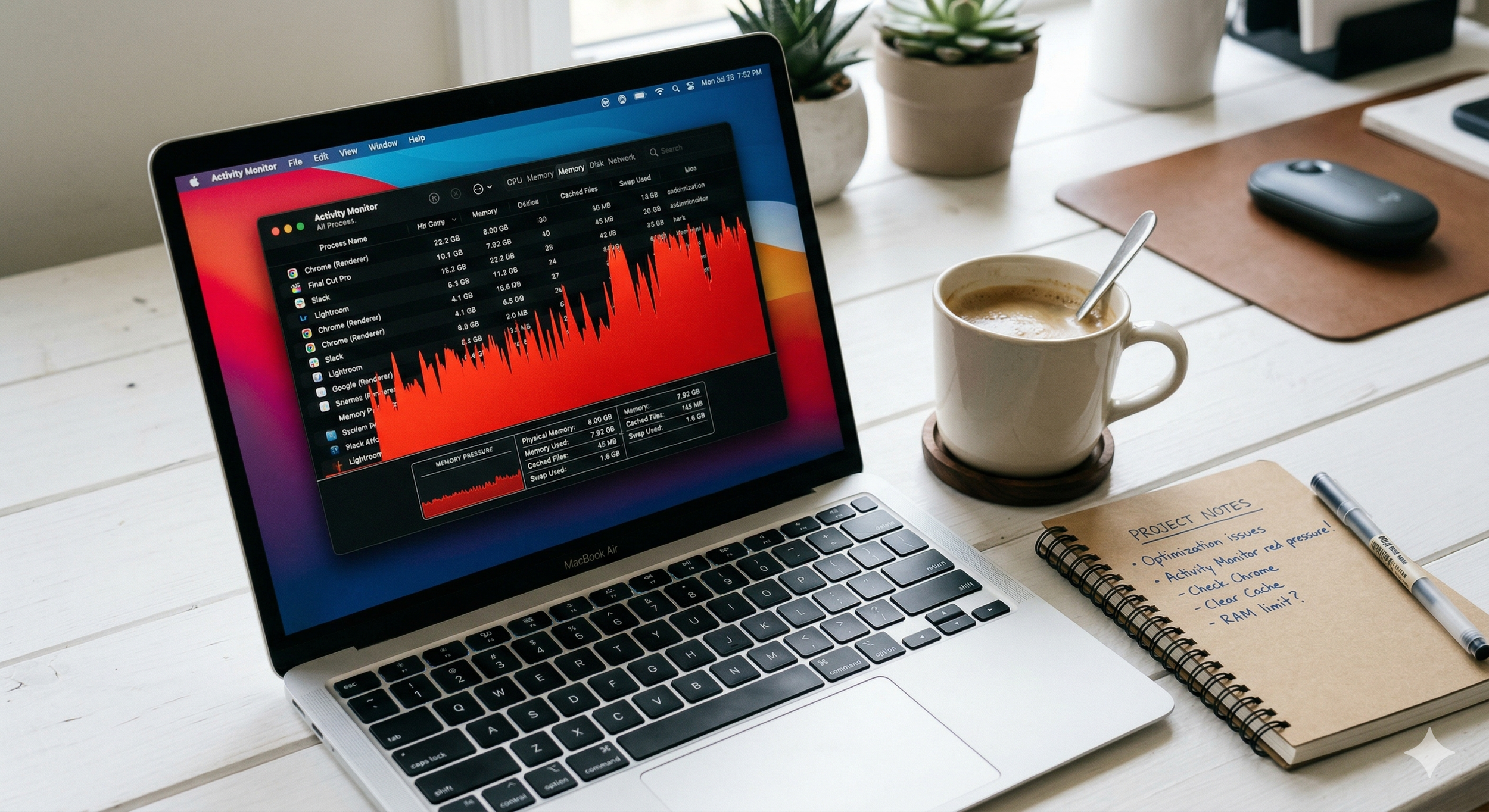
You bought a MacBook Air or base-model MacBook Pro. It felt fast on day one. Snappy, responsive, everything Apple promised. Then a few months passed. Now Safari eats 4GB just sitting there with a handful of tabs open. Xcode beach-balls during builds. Zoom and Slack running together brings the entire system to a crawl. Sound familiar?
Here's the uncomfortable truth: MacBook 8GB RAM is not enough for how most people actually use their computers in 2026. It wasn't really enough in 2024 either — but macOS was better at hiding the strain. Now, with macOS Sequoia's expanded background intelligence features, larger app footprints, and heavier browser demands, that 8GB ceiling hits harder and faster than ever.
At Computer Village, we've watched this pattern play out across hundreds of customer machines since Apple Silicon launched. People come in thinking their MacBook is broken. The screen isn't cracked. Battery health looks fine. SSD checks out. But the machine crawls. The culprit? Memory pressure so high that the system spends more time swapping data to the SSD than actually running your apps.
This guide explains why 8GB falls short in 2026, what that constant memory pressure costs you in real terms, and what your actual options are.
Section 1: Why 8GB Felt Fine Before but Doesn't Anymore
How Unified Memory Works on Apple Silicon
Apple's M-series chips handle memory differently than older Intel Macs. Instead of separate pools for the CPU and GPU, Apple Silicon uses unified memory. The CPU, GPU, and Neural Engine all share the same RAM pool. That's efficient — it eliminates the overhead of copying data between separate memory banks.
But it also means your 8GB serves every function on the machine. The GPU grabs a chunk for display rendering. Meanwhile, the Neural Engine takes a slice for on-device machine learning tasks. macOS itself reserves another portion. What's left goes to your apps. In practice, a fresh boot of macOS Sequoia on an 8GB machine leaves roughly 3 to 4GB for actual application use.
What Changed in 2026
Several things shifted at once. Each one individually would strain 8GB. Together, they break it.
macOS Sequoia's background processes grew. Apple added new on-device intelligence features, expanded Spotlight indexing, and increased the frequency of background maintenance tasks. These features run silently but consume real memory.
Browsers got hungrier. Safari in 2026 uses more RAM per tab than it did two years ago. Chrome and Firefox are even worse. Ten browser tabs — a modest number for most professionals — can easily consume 3 to 4GB on their own.
Apps stopped caring about low-memory machines. Slack, Zoom, Microsoft Teams, Figma, and most modern productivity apps now assume 16GB as a baseline. They allocate memory aggressively because they expect it to exist. On an 8GB machine, these apps compete for scraps.
Apple Intelligence features demand memory. On-device processing for smart replies, photo analysis, and other features eats into that shared memory pool. These features run whether you actively use them or not.
Section 2: What Running Out of Memory Actually Costs You
The Silent Performance Tax: SSD Swap
When your MacBook runs out of physical RAM, macOS doesn't crash. It swaps — moving inactive data from memory to the SSD and pulling it back when needed. Apple's SSDs are fast, so this works smoothly in short bursts. But when swap becomes constant — and on 8GB machines in 2026, it almost always does — two expensive things happen.
First, everything slows down. Apps take longer to switch. Documents lag when you scroll. Video calls stutter. The beach ball appears during tasks that should take milliseconds. You don't notice it as a single dramatic failure. You notice it as a machine that "just feels slow" all the time.
Second — and this is the part most people miss — constant swapping wears out your SSD. Every read and write cycle to flash storage consumes a finite number of write cycles. An 8GB machine under heavy swap pressure can write tens of gigabytes per day to the SSD. Over two or three years, that cumulative wear can measurably reduce drive lifespan. We've seen MacBooks come in for data recovery where the root cause traced back to premature SSD wear from years of excessive swap.
Real-World Scenarios Where 8GB Fails
These aren't edge cases. These are normal 2026 workflows:
Remote worker running Zoom + Slack + a browser with 8 tabs + a Google Doc. That alone can push memory pressure into the yellow or red zone. Add Spotify or a messaging app and swap kicks in hard.
Student using Xcode or any development environment. Compiling code while running a simulator eats through 8GB instantly. Build times stretch. Simulators become unresponsive.
Creative professional editing photos in Lightroom or Photoshop. These apps cache images in RAM for smooth editing. On 8GB, they can't cache enough, so every zoom and scroll hits the SSD instead.
Anyone who never closes tabs. Thirty Safari tabs? That's easily 5 to 6GB of memory. The system starts swapping constantly, and the entire machine bogs down.
If your MacBook shows these symptoms, a quick repair diagnostic can rule out other hardware issues. Sometimes what feels like a RAM problem turns out to involve a degraded battery throttling performance, or an SSD that already took damage from prolonged swap pressure.
Section 3: What You Can Actually Do About It
Option 1: Manage Memory More Aggressively
This doesn't solve the underlying problem, but it reduces the pain. Close tabs you aren't actively using. Quit apps when you finish with them — don't just minimize. Avoid running more than two or three memory-heavy apps at once. Use Safari instead of Chrome, since Safari manages memory more efficiently on macOS.
You can check real-time memory pressure in Activity Monitor. Open it, click the Memory tab, and watch the pressure graph. Green means fine. Yellow means the system is straining. Red means heavy swap is happening and your SSD is working overtime.
These habits help. But they also mean constantly babysitting your machine instead of just working. That's a productivity tax you shouldn't have to pay on a premium laptop.
Option 2: Upgrade to a 16GB or Higher Machine
Here's the hard truth: you cannot upgrade RAM on any Apple Silicon MacBook after purchase. The memory sits on the chip package itself. No technician can add more. No third-party upgrade exists. The RAM you buy is the RAM you keep for the life of the machine.
That means the real decision point happens at purchase. If you're buying a new MacBook — whether it's a MacBook Air M3, MacBook Air 15", MacBook Pro 14", or MacBook Pro 16" — always configure 16GB minimum. For professional use involving video editing, development, or design, 24GB or 36GB pays for itself in time saved and SSD longevity.
At Computer Village, we help customers configure the right spec for their actual workload. Our team has guided Miami professionals, University of Miami students, and small businesses through this decision since 1978. A quick conversation at our Coral Gables store saves you from spending $1,200 on a machine that starts struggling within six months.
Option 3: Optimize Your Current 8GB Machine
If upgrading isn't in the budget right now, a professional tune-up can help squeeze more life out of your current MacBook. At Computer Village, our Mac repair technicians can clear accumulated system clutter, identify background processes consuming excessive memory, check SSD health for swap-related wear, and verify that your battery isn't causing thermal throttling that compounds the slowness.
We also offer personal training sessions that teach you how to manage memory effectively, set up automated workflows, and optimize macOS settings for low-memory machines. Sometimes knowing which settings to change makes a measurable difference in daily usability.
For businesses running fleets of base-model MacBooks, our managed IT services team can deploy memory-optimization profiles across multiple machines and monitor SSD health proactively.
Section 4: Conclusion and Final Thoughts
The 8GB base-model MacBook made sense in 2020 when macOS was leaner and apps were lighter. In 2026, it's a bottleneck. Not because the chip is slow — the M2 and M3 processors remain excellent. The bottleneck sits in the memory ceiling that forces constant SSD swapping, quietly degrading both performance and drive lifespan.
If you already own an 8GB machine, manage memory carefully. Close what you don't need. Monitor memory pressure. Get a professional health check if the machine feels sluggish — sometimes the problem compounds with battery degradation or SSD wear that a diagnostic can catch early.
If you're shopping for a new MacBook, treat 16GB as the true starting point. The $200 upgrade at purchase saves you years of frustration and protects the SSD from premature wear. It's the single most impactful configuration choice you can make.
And if you're not sure what spec fits your workflow, stop by Computer Village or call us at 305-667-7400. We've guided customers through Apple hardware decisions for over 45 years. We'll match you with the right machine — not the cheapest one and not the most expensive one. The right one.
FAQs
Performance and Memory Questions
How do I check if my MacBook is running out of RAM?
Open Activity Monitor (search for it in Spotlight). Click the Memory tab. Look at "Memory Pressure" at the bottom. If the graph stays green, you're fine. Yellow means the system strains under your current load. Red means heavy swapping to the SSD — your machine is actively suffering from insufficient memory.
Can I upgrade the RAM on my MacBook Air or MacBook Pro?
Not on any Apple Silicon model. The RAM sits directly on the M-series chip. No aftermarket upgrade exists. The amount you choose at purchase stays for the life of the machine. This makes the initial configuration decision critically important.
Does 8GB of unified memory equal 8GB of traditional RAM?
Roughly, yes — but unified memory shares that pool between CPU, GPU, and Neural Engine. Traditional systems only shared RAM with the CPU. So in practical terms, 8GB of unified memory leaves less available for apps than 8GB did on older Intel Macs where the GPU had its own dedicated VRAM.
Buying and Repair Questions
Should I buy a MacBook with 16GB or 24GB?
For most professionals and students, 16GB handles 2026 workloads comfortably. Choose 24GB or higher if you work with video editing, 3D rendering, large codebases, or run virtual machines. Our sales team at Computer Village can help match the spec to your specific needs.
Can constant SSD swapping actually damage my MacBook?
Yes. SSDs have a finite number of write cycles. Excessive swap writes consume those cycles faster than normal use would. Over two to three years of heavy swapping, the SSD can develop measurable wear. In severe cases, this leads to data loss or drive failure. A proactive SSD health check can catch early signs of wear before they become a problem.
My 8GB MacBook feels slow — is it definitely a RAM issue?
Not always. A degraded battery can cause thermal throttling that mimics memory problems. Failing SSDs, excessive startup items, or even liquid damage can produce similar symptoms. A professional diagnostic distinguishes between these causes so you fix the right thing.